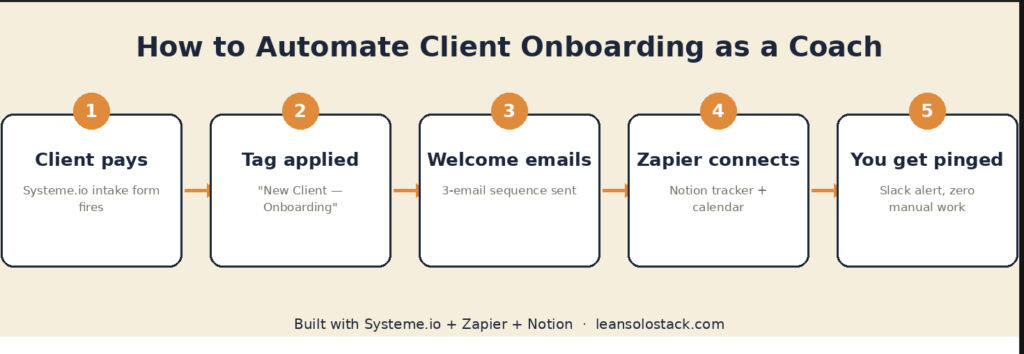
Every new client should get the same smooth welcome, whether you sign them up on a Tuesday morning or right before bed on a Sunday. Manual onboarding breaks that promise the moment you’re busy, on a call, or asleep.
This is how to automate client onboarding as a coach: build a sequence that fires automatically the second someone pays, using Systeme.io as the core and Zapier to connect the pieces.
The Problem
When onboarding is manual, three things go wrong. New clients wait hours or days for their welcome email while you’re heads-down with someone else. Steps get skipped when you’re tired or rushed, because a tired brain forgets the fifth step in a six-step checklist. And every new client means re-doing the same five tasks by hand: send the welcome email, add them to your tracker, share the intake form, book the first call, tag them in your email list.
None of that needs a human doing it live. The cost of manual onboarding isn’t just your time, it’s the inconsistency a client notices, even if they can’t name what felt off.
What You’ll Need
- Systeme.io (Free plan works for the first version), $0 to $17/month
- A Notion client tracker or spreadsheet, $0
- Zapier (Free plan, 100 tasks covers this), $0 to $19.99/month
- Calendly or Systeme.io’s built-in calendar for booking the first call, $0
How to Automate Client Onboarding as a Coach: Step-by-Step
1. Build your intake form inside Systeme.io. Go to Systeme.io → Funnels → create a new step → Form. Ask only what you need for session one: name, email, what they want to work on, and their timezone. Keep it under 6 fields, a long intake form kills momentum right after someone pays.
2. Set your form to trigger a tag. In the form settings, apply a tag like “New Client — Onboarding” the moment someone submits. This tag is what everything downstream will key off of.
3. Build the welcome email sequence. Go to Automations → create a new rule → “When tag New Client — Onboarding is added.” Add a 3-email sequence: welcome message and what to expect (sent immediately), how to prepare for the first session (sent 1 day later), and a reminder to book their call if they haven’t yet (sent 3 days later).
4. Connect Systeme.io to your Notion tracker with Zapier. Create a new Zap: trigger is “New Contact Tag” in Systeme.io, action is “Create Database Item” in Notion. Map the contact’s name, email, and intake answers into the matching Notion fields. Test it with a dummy submission before going live.
5. Automate the calendar booking link. Add your Calendly (or Systeme.io calendar) link as the final block on your form’s thank-you page, so the very next thing a new client sees is a way to book their first call, no email exchange required.
6. Set up a “client went cold” safety net. Build a second automation: if the tag “New Client — Onboarding” has been active for 5 days with no booking, send yourself a Zapier notification so you can follow up personally instead of losing them to silence.
7. Add a Slack or email alert for yourself. In your Zap, add a final step that pings you (Slack message or email) every time a new client completes onboarding, so you always know who’s in your pipeline without checking Notion manually.
8. Test the whole flow as a fake client. Submit your own intake form with a test email address. Confirm you receive all three welcome emails on schedule, the Notion entry appears correctly, and the booking link works.
What to Put in Each Welcome Email
The sequence in step 3 only works if each message has one job. Here is a simple plan for the three emails.
- Email 1, sent immediately: Thank the client by name, confirm what they bought, and tell them exactly what happens next. Put your booking link in the first screen of the email, so the next action is obvious.
- Email 2, sent 1 day later: Tell them how to prepare for session one. Give them two or three questions to think about and one thing to bring, such as a recent example or a number they want to improve.
- Email 3, sent 3 days later: Remind them to book if they have not yet. Keep it short and friendly, include the link again, and invite them to reply with any question.
Write each email in your own voice, as if you were sending it by hand. Clients notice when a welcome message reads like a template, and a warm tone is one of the few things automation cannot fake for you.
Intake Form Questions Worth Asking
Step 1 says to keep the form under 6 fields. These are the questions that give you the most useful answers for a first session. Pick the ones that match your program.
- What is the main thing you want to change in the next 90 days?
- What have you already tried?
- What is getting in your way right now?
- What time zone are you in, and when do you prefer to meet?
- Is there anything I should know before our first session?
Name and email make the other two required fields. Anything beyond this can wait until the first call.
What to Automate and What to Keep Personal
Automate everything that is the same for every client: the confirmation, the preparation email, the reminder, the tracker entry, and the booking link. Keep these personal: the first reply to a client who shares something difficult in the intake form, any change to the schedule, and the feedback after the first session.
A good rule: if a client would be hurt or confused to find out a robot sent it, write it yourself.
A Note on the Zapier Step
Step 4 assumes your Zapier connection to Systeme.io offers a trigger for tags. Check this in Zapier when you build the Zap. If the trigger you need is missing, Systeme.io offers a public API key, and its help center explains how to create one. You can then use Zapier’s webhook tools to send the same data to Notion.
Testing Checklist Before You Go Live
- Fill in your own form with a second email address you control.
- Confirm the tag was applied to the new contact.
- Check that email 1 arrives within a few minutes, and check the spam folder too.
- Click every link in the email, including the booking link.
- Confirm the Notion entry has the name, email, and intake answers in the right fields.
- Shorten the delays on your “client went cold” rule to a few minutes, test it, then set the real delays back.
Run this test again after any change to the form or the automations. One skipped test is how a real client ends up with a broken booking link.
Pro Tips
Keep the first email personal, not templated-sounding. Even though it’s automated, write it like you’re speaking to one person. “I’m genuinely excited to work with you” reads very differently from “Welcome to our program!”
Send the intake form before the sales call ends, not after. If you can, have new clients fill it out while they’re still on the phone booking, or right after checkout, while their motivation is highest.
Tag by client type, not just “new client.” If you run different programs (1:1 vs. group), use separate tags so each gets the right onboarding sequence instead of a generic one.
Revisit the sequence every quarter. What felt right when you wrote it may not match how your offer has evolved six months later.
Common Mistakes to Avoid
Asking too much in the intake form. Every extra field is a chance for someone to abandon it. Save the deep intake questions for the first live session.
Forgetting the “no-show” path. If a client books but doesn’t show up, you need a follow-up automation, not silence.
Not testing before launch. An onboarding sequence that breaks silently is worse than no automation at all, because you won’t notice until a client complains.
What This Looks Like When Fully Set Up
A stranger fills out your intake form. Within seconds, they’re tagged, added to your Notion tracker, and their first welcome email is already in their inbox. They book their first call from the same page. You get a Slack ping letting you know. You haven’t touched a single email, spreadsheet row, or calendar invite by hand.
Related Tools to Consider
- Systeme.io for the funnel, form, and email automation backbone (new to funnels? See how to create a sales funnel without coding)
- Zapier to connect Systeme.io to Notion and your calendar
- Notion (free) as your lightweight client tracker
Keep reading
- The best tech stack for online coaches in 2026
- Systeme.io vs Kajabi for coaches: which is better in 2026?
- Best funnel builders for coaches in 2026
Disclosure: This article contains affiliate links. If you click and purchase through these links, I may earn a commission at no extra cost to you. I only recommend tools I genuinely believe in for solopreneurs.
Pingback: Best Tech Stack for Online Coaches 2026: Complete Guide